Archive for the ‘Hardware y dispositivos’ Category

h1

Instalación en Kubuntu de drivers propietarios para AMD Radeon RX para Hashcat

31/03/2025
Si Hashcat no muestra la GPU:
hashcat -I

Es necesario instalar los drivers de la tarjeta gráfica. Para ello:

1º) Descargar el paquete oficial para debian/Ubuntu de:
https://www.amd.com/en/support/download/linux-drivers.html

2º) Instalar el paquete en el sistema
$ dpkg -i amdgpu-install_6.3.60304-1_all.deb

3º) Ejecutar el instalador, limpiado previamente versiones anteriores:

$ amdgpu-install --uninstall
$ sudo usermod -a -G render $LOGNAME
$ sudo usermod -a -G video $LOGNAME
$ sudo amdgpu-install --opencl=rocr --vulkan=amdvlk,pro
$ reboot


Tras ello, Hashcat si que mostrará dos dispositivos (CPU y GPU).
$ hashcat -I
Backend Device ID #1 (Alias: #2)
Name...........: AMD Radeon RX 7800 XT


De esta manera, se puede invocar Hashcat utilizando la GPU:

./hashcat -d 2 -m 22000 --session miSesionHashcatv2 --outfile /home/carlos/capturas_wifi/output/resultados.txt /home/carlos/capturas_wifi/hashes/_hashes2.txt --status-timer=300 /home/carlos/capturas_wifi/diccionarios_WPA/dicc.mergeado4.txt

h1

Cómo dash cam (cámara) en moto (scooter)

13/06/2019

Nota de vigencia (2026): el montaje y las especificaciones corresponden a una cámara Gitup F1 y a la instalación descrita en 2019. Verifica la compatibilidad eléctrica de cualquier cámara antes de conectarla a la moto. Las consideraciones legales y de protección de datos del texto original también pueden haber cambiado; no se ofrecen aquí como asesoramiento jurídico actualizado.


Recientemente he instalado una cámara (dash-cam) en mi scooter. En este artículo describo cómo hacerlo. Antes de empezar, unas premisas:

  • La dashcam es una cámara de grabación que sirve para grabar mientras conduces, como llevan algunos vehículos. Esto es especialmente útil en caso de accidente.
  • Pese a que actualmente no está regulado el uso de cámaras, la última palabra la tiene el juez sobre la validez o no de la prueba. Cuanto menos puedes presentar la grabación e incluso en el caso de que la prueba no sea admitida, el juez ya sabrá que tienes la razón. Muchos jueces la admiten, y a las compañías de seguros les vale para evitar llegar a juicio, agilizando enormemente los trámites.
  • Esta propuesta que expongo vale sólo para motos scooter, si bien las R podrían hacerlo con alguna adaptación o paso extra que simulase toma de mechero.


1. Cámara: Gitup F1


  • Graba en resoluciones desde 720p (unos 45 min) hasta 4k (unos 20 min). El problema de los 720p es que las matrículas de los vehículos (importante) no se distinguen cuando vamos en movimiento. Si se conecta la cámara a la toma del mechero,no hay problemas de autonomía, y por tanto podremos grabar a 4k sin problemas todo el tiempo que se desee.
  • Trae un cable para enchufar a la red eléctrica del vehículo, pero permite alimentarse también con cualquier cable miniusb (sólo que tienes que enchufarla a un sitio donde haya un usb en el otro lado, claro, como la toma de mechero de la que ahora hablaremos).
  • La cámara tiene la opción de grabar en bucle, esto es, ir grabando continuamente y cuando se quede sin memoria, borra lo más antiguo y continua. Así no requiere mantenimiento ninguno.
  • También el que la cámara como su soporte sean de color negro ayuda tanto a ser discretos y que no os miren por la calle, como a que no os la roben tan fácilmente como si fuese de un color llamativo cuando os la olvidemos puesta en lugares públicos (que ocurre).


– Coste: 69.90€ en Amazon.


2. Soporte

  • Se pueden utilizar la práctica totalidad de los soportes compatibles con GoPro.
  • En este caso, elegí el siguiente pues permite amarrarse a la moto sin necesidad de ventosa (imposible al carecer de superficies planas la moto), ni pegamentos o adhesivos, actuando el soporte con apenas una pinza atornillable (que no hace falta atornillar directamente al salpicadero, dejando éste intacto).
  • Gira 360º y permite poner la cámara en horizontal detrás de la cúpula, encima del salpicadero.


3. Tarjeta de memoria

  • La cámara admite tarjetas Microsd de tamaño máximo 128GB, aunque es probable que admita más.
  • Es recomendable que sea de buena calidad pues el uso que se va a hacer de la tarjeta es intensivo: se van a realizar escrituras (grabaciones) en vez de las habituales lecturas que desgastan menos a las tarjetas.
  • También el grabar el vídeo en 4K implica que la tarjeta ha de tener buen rendimiento para que no se produzcan cuellos de botella y se descarten automáticamente fragmentos de la grabación.
  • Coste: 17.99€ en Amazon


4. Cable

  • Para conectar la cámara al mechero de la moto y por tanto garantizar su autonomía, es necesario un cable miniusb. Es raro que en 2019 todavía se vendan productos que utilizan miniusb en vez de microusb, y ésta es la única pega que le veo a la cámara (que tampoco es problema en definitiva).
  • La cámara viene con un cable miniusb para enchufar a la instalación eléctrico del vehículo, pero si no se tienen conocimientos técnicos se puede enchufar a otro cable miniusb que vaya conectado a la toma del mechero, como se ha hecho en este tutorial.


  • En este sentido se recomienda utilizar un cable miniusb de 1m. Más longitud es incómodo pues implica guardar el cable sobrante en la guantera. Algo menos de longitud es posible.
  • Se recomienda de color negro por estética, para disimularlo, o incluso si es posible esconderlo por debajo del salpicadero y sacarlo por las tomas de aire.
  • Sobre el ángulo, es conveniente que sea acodado para que ocupe menos.


5. Toma de mechero

  • Como ya se ha comentado, la cámara puede funcionar con su propia batería pero con una autonomía bastante limitada, o enchufada a la toma de mechero de la moto, ofreciendo tiempo ilimitado de grabación. Además, no sería necesario tener que cargarla cada día.
  • Para ello, se recomienda un adaptador de mechero que tenga suficiente amperaje (2.4a). Además, si dispone de dos tomas para poder utilizar la segunda en otros menesteres (como cargar el móvil mientras se viaja), se optimiza la solución.
  • La solución elegida es de Aukey con buenas características y valoraciones en Amazon:


RESULTADOS

Coste total: 103.77€


USO

  • A la hora de grabar, con tan solo enchufarla al cable de la moto y dar el contacto, se enciende la cámara. Para que grabe sólo hay que darle al botón central, el redondo. También hay una función -pendiente de probar- para que empiece a grabar nada más detectar el contacto de la moto.
  • En caso de accidente, se pueden ver los vídeos al instante a través de la app del móvil. Éste se conecta por una wifi que crea la cámara al móvil, y las puedes ver con el policía de turno. Y la tarjeta de memoria siempre con vosotros, lo pida la otra parte o el policía, no debéis entregarla sin haber hecho copia antes de los vídeos.

h1

Kswapd0 probem at Raspberry Pi 3 with Raspbian

01/05/2018

If in a Raspberry Pi there is a problem of resources, going slow or even frozen, and a process named «Kswapd0» is taking a lot of CPU:

root@Shirley:~# ps uax | grep kswap
root 44 0.2 0.0 0 0 ? S 11:28 1:59 [kswapd0]

is due to any process that is consuming a lot of memory, causing the need of to do «swapping«. This is, saving RAM memory at the HD (SD card in Raspberry Pi), so the operating system (Raspbian i.e.) can allocate memory to other process.

The SD card is quite slow (about 20MB/seg), what makes hard and slow the swapping process, and this drivers the Raspberry to require minutes or hours if a process is demanding a lot of RAM memory. The main advice to avoid this problem is to assume that Raspberry PI is a machine with a lot of limitations, not designed for general purposes (Desktops, browsing the web, computing, etc).

For palliating problems, you can follow next tips:

1º) Updating the system to get the state of art kernell. If you have Raspbian, run as root:

root@Shirley:~# apt-get update
root@Shirley:~# apt-get upgrade
root@Shirley:~# apt-get dist-update
root@Shirley:~# reboot

2º) Change the microSD card for another more modern and better, like the Samsung Evo+ 32GB microSD card. A SD card class 10 is enough for Raspberry Pi 3, as the machine cannot write faster than the Samsung card supports. Anyway, you can investigate reviews and comparisons of new microSD cards for Raspberry at Internet.

3º) Booting from a USB SSD disk may help, but it is expensive and the improvement is not guaranteed, as the USB 2.0 port has a maximum speed of about 20MB/s.

4º) Check the process that demands so many RAM memory. Try to update it, tune it, check for any bug (memory leak), report the high RAM consumption to developers, or by last, look for an alternative.

5º) Update Raspberry´s firmware:

root@Shirley:~# rpi-update

h1

Creating a POE solution for iSmartAlarm Spot

29/04/2018

If you have a iSmartalarm Spot security camera, and you haven’t the posibility to bring electricity to it, you can use this tutorial so it will be fed with the electricity that cames by a Ethernet (network) cable. This technology is commonly named «Power Over Ethernet» (POE).

At this tutorial is needed:

  • A POE injector: 48V 1,25A. You can find it at Ebay

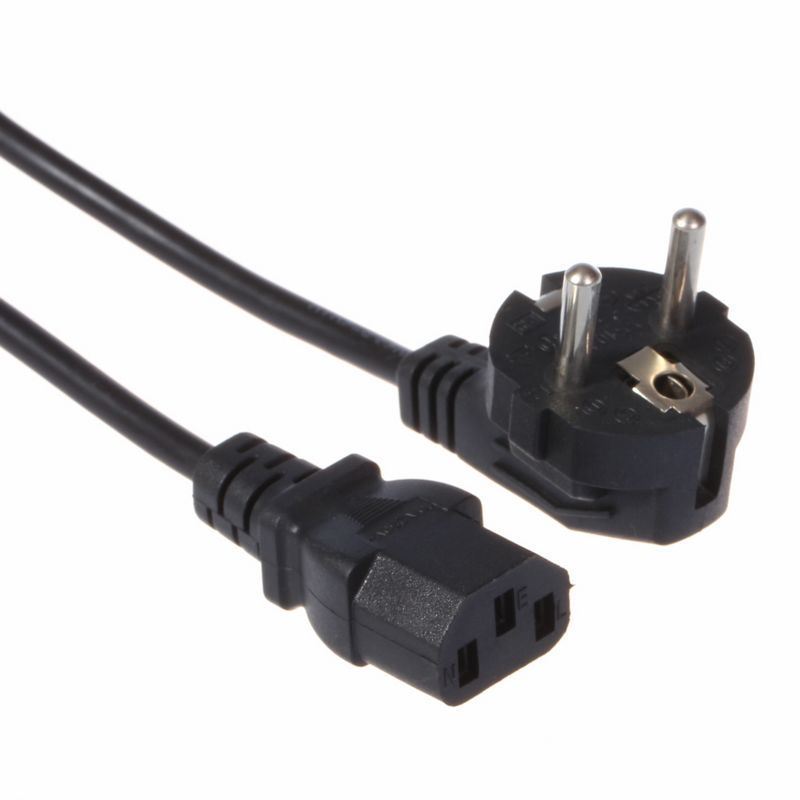
    Also the VDE power cable is not usually included, but you can find it easly at Ebay, Amazon…
    VDE.cable.for.POE.Adaptor


  • A high quality CAT cable. As we are going to transport electricity and data in the same wire, and for avoiding shorcircuits, fires, electromagnetic interference or others, do not hesitate buying a premium wire for this purpose. Your time is money. Also is important to use only one wire, not plugin 2 or more, so look for one which measure can satisfy your needs. For example this IBRA® 10M Cable de red Gigabit Ethernet Lan CAT.7 at Amazon.

CAT7.cable.for.iSmartAlarm.Spot.POE.716I-x4RQAL._SL1500_

  • A short microusb cable. For not having plenty of meters of wires, having a short wire is the most discreet and elegant solution.
    small.microusb.cable.for.POE.iSmart.Alarm.Spot

With all this items, creating the POE solution is easy:

  1. Plug the power injector to the wall, and to an end of the RJ45 cable.
  2. Plug the other end of the RJ45 wire at the rear of the wall POE plug.
  3. Plug the microusb to the wall plate.
  4. Plug the iSmartAlarm Spot camera to the microusb.

And you’re done.

Note: if you want to transport data a part of electricty using the RJ45 (what should happen in most of cases), plug the data cable in the second socket of the power injector.


iSmatAlarm.Spot.camera.POE


h1

Creating an GCP egg node with a Raspberry Pi and a TrueRNG hardware random number generator

10/12/2017

After a first attempt several years ago configuring a GCP node in a Raspberry PI with a random number generator hardware with COM port, I had to settle for installing it on a common PC. The card provided by the GCP project was not voltage-compatible with Raspberry Pi.

Years later I have resumed this project and I have achieved it through a Raspberry Pi 3b and a different random number generator hardware, one with USB connection. For this purpose we will need:

(estimated time to read: 5 minutes, to do: 35 min).

  1. Hardware
    1. A Raspberry Pi 3b (in fact, any Raspberry is enough for this mannual, but using state of art technology allows better maintenance in long term always).  You can get one here.
    2. A microSD card like this Sandisk 64GB. The egg stores the data is going to send, and annualy it is advised to be mannualy deleted.
    3. Optional, but advised, Aukru kit: a kit of addins for the Raspberry Pi 3 composed by a good power charger, a box and 3 heat sinks as this node will be working 24/365.
    4. n entropy generator hardware: In this case TrueRng v3, with USB interface. You can get one here.
  2. Mount the hardware
      1. Mount the Rasperrby in the provided box. Plug the microsd into the Raspberry and the TrueRNG. Plug the charger and an ethernet connection if you have one.
      2. Install Raspbian.
      3. Set up network interface, edit the following file:
        $sudo nano /etc/network/interfaces and add this:
        iface eth0 inet static
        address 192.168.1.2
        netmask 255.255.255.0
        gateway 192.168.1.1
        and restart networking daemon to enable networking interfaces:
        carlos@raspberrypi:~ $ sudo /etc/init.d/networking start
      4. Enable SSH to start on every boot.
      5. Let´s update the system:
        pi@raspberrypi:~ $ sudo apt-get update
        pi@raspberrypi:~ $ sudo apt-get upgrade
        pi@raspberrypi:~ $ sudo apt-get dist-upgrade

      6. pi@raspberrypi:~ $ sudo adduser carlos
        pi@raspberrypi:~ $ sudo nano /etc/sudoers.d/010_pi-nopasswd
        pi@raspberrypi:~ $ sudo passwd pi
      7. Reboot is always healthy:

        pi@raspberrypi:~ $ sudo reboot


  3. Now we have a Raspberry Pi 3b ready to be configured with the Global Consciousness Project (CGP). For this:
    1. Plug the TrueRng v3 USB at the Raspberry, and check it is detected:

      carlos@raspberrypi:/home/pi $ dmesg
      [ 1912.517842] usb 1-1.3: new full-speed USB device number 5 using dwc_otg
      [ 1912.652704] usb 1-1.3: New USB device found, idVendor=04d8, idProduct=f5fe
      [ 1912.652717] usb 1-1.3: New USB device strings: Mfr=1, Product=2, SerialNumber=0
      [ 1912.652726] usb 1-1.3: Product: TrueRNG
      [ 1912.652733] usb 1-1.3: Manufacturer: ubld.it
      [ 1912.655235] cdc_acm 1-1.3:1.0: ttyACM0: USB ACM device

    2. Download TrueRNG Udev-Rules and follow these indications:
      1. Extract and place udev rules in udev/rules.d folder (this is /etc/udev/rules.d/ under ubuntu)
        $ sudo tar -zxvf TrueRNG-Linux-udev-rules.tar.gz -C /etc/udev/rules.d/
      2. Plug in TrueRNG USB Hardware RNG.
      3. Verify /dev/TrueRNG device exists by typing
        $ ls -l /dev/TrueRNG
    3. As it is explained here, please install RNG Tools:
      1. Install rng-tools using apt-get (Debian, Raspbian or Ubuntu) or yum (Redhat)
        $ sudo apt-get install rng-tools
      2. Modify /etc/default/rng-tools (Ubuntu) or /etc/whatever (RedHat) and make sure the HWRNGDEVICE points to /dev/hwrng (eg. HRNGDEVICE=/dev/TrueRNG)
        $ nano /etc/default/rng-tools
        # Configuration for the rng-tools initscript 
        # $Id: rng-tools.default,v 1.1.2.5 2008-06-10 19:51:37 hmh Exp $ 
        # This is a POSIX shell fragment 
        # Set to the input source for random data, leave undefined 
        # for the initscript to attempt auto-detection. Set to /dev/null 
        # for the viapadlock and tpm drivers. 
        # HRNGDEVICE=/dev/hwrng 
        # HRNGDEVICE=/dev/null 
        HRNGDEVICE=/dev/TrueRNG 
        # Additional options to send to rngd. See the rngd(8) manpage for 
        # more information. Do not specify -r/--rng-device here, use 
        # HRNGDEVICE for that instead. 
        #RNGDOPTIONS="--hrng=intelfwh   --fill-watermark=90% --feed-interval=1" 
        #RNGDOPTIONS="--hrng=viakernel  --fill-watermark=90% --feed-interval=1" 
        #RNGDOPTIONS="--hrng=viapadlock --fill-watermark=90% --feed-interval=1" 
        #RNGDOPTIONS="--hrng=tpm --fill-watermark=90% --feed-interval=1"  
      3. Make sure rng-tools will autostart
        $ sudo update-rc.d rng-tools enable
      4. Verify rng-tools service is running using top and cat your syslog for rng-tools debug info.
        $ sudo reboot 
        carlos@raspberrypi:~ $ ps axu | grep rng
        root       400  0.0  0.1  27600  1304 ?        SLsl 13:34   0:00 /usr/sbin/rngd -r /dev/TrueRNG
    4. Install the GCP software USB version, not the one at the public repositories:

      $ sudo apt-get install libncurses5-dev libusb-dev
      $ wget http://noosphere.princeton.edu/egg-beta/egg_araneus.tgz
      $ tar xvfz http://noosphere.princeton.edu/egg-beta/egg_araneus.tgz
      $ cd egg_araneus
      $ make clean
      $ make

      You will finish with several warnings like:

      /home/carlos/EGG_ARANEUS/regtest.c:72: aviso: `sys_errlist' is deprecated; use `strerror' or `strerror_r' instead

      This, anyway, is right.
      Now, modify the config file «.eggrc» (.eggprotocol is not longer used) to specify some parameters similar to the following:

      $ nano EGG_ARANEUS/.eggrc

      There parameters are:

      – First line are parameters given by the GCP, please ask Roger Nelson for them. Only «pilar002.noip.me» should be a public address ip or URI for your node.
      – Second line is the GCP server, where generated data is sent.
      – Third line is the configuration of generated data.
      – Fourth line is the device we´re using to generate data. Althought TrueRNG v3 is a USB device, the GCP    has not developed a driver for it, so we will read it generated data as a serial device (reading from /dev/TrueRNG). TrueRNG has this advantage.

      1. Orion: read from a «Orion» like device (/dev/ttyXX).
      2. Number «0» means GCP will read from /dev/ttySO.
      3. «9600» are bpd.In a later step we will make an adjustment so that GCP will real from ttyS0 instead of TrueRNG.
    5. Copy .eggrc to /etc/eggrc$ cp /home/carlos/gcp_eggsh/.eggrc /etc/eggrc
    6. Updating date and time. To synchronize the data from the egg and the server, it is necessary to sync date and hour. Also we will configure the Raspberry to start, on every boot, the GCP´s software.
      carlos@raspberrypi:~/egg $ sudo apt-get install ntpdate
      carlos@raspberrypi:~/egg $ sudo nano /etc/rc.local
      and add the following code before the «exit 0»:
      # Update date and time on boot
      ntpdate -s hora.roa.es &
      /home/carlos/gcp_eggsh/eggsh &

      Of course change the path of gcp_eggsh to that you´re using.

    7. Link between ttyS0 and TrueRNG: while the TrueRNG device is /dev/TrueRNG, the GCP reads from /dev/ttyS0, so it is necessary to create a soft-link between them (ttyS0 –> TrueRNG). But anything on /dev is lost after every reboot. So it is mandatory to create it on each boot. For this:carlos@raspberrypi:/etc/init.d $ sudo nano create_ttyS0#! /bin/sh
      ### BEGIN INIT INFO
      # Provides: ln -sf
      # Required-Start: $local_fs $remote_fs
      # Required-Stop:
      # X-Start-Before: rmnologin
      # Default-Start: 2 3 4 5
      # Default-Stop:
      ### END INIT INFO
      &nbsp
      . /lib/lsb/init-functions
      &nbsp
      N=/etc/init.d/create_ttyS0
      &nbsp
      set -e
      &nbsp
      case "$1" in
      start)
      # make sure privileges don't persist across reboots
      ln -fs /dev/TrueRNG /dev/ttyS0
      ;;
      stop|reload|restart|force-reload|status)
      ;;
      *)
      echo "Usage: $N {start|stop|restart|force-reload|status}" >&2
      exit 1
      ;;
      esac
      &nbsp
      exit 0
      and then create a symlink to this script at rc5.d directory, so it will be invoked at every boot:
      carlos@raspberrypi:/etc/init.d $ sudo ln -s /etc/init.d/create_ttyS0 /etc/rc5.d/S99create_ttyS0
    8. For solving an issue with  Raspberry PI and low speed, please do the following fix:
      carlos@raspberrypi:~ $ sudo su -
      root@raspberrypi:~# echo 0 > /sys/module/dwc_otg/parameters/nak_holdoff

    9. At your router, map ports UDP  1105 and 2510 to the IP of your Raspberry.
    10. Testing. Just reboot and execute the eggsh software, you will get something like:
      and check it at the GCP status web (refreshing this web may take a while)
    11. Now that everything is working you may want to create a backup of the microSD card.

Edit1 (14-05-2018): At Radio Nacional de España there is a reportage of the The Global Consciousness Project. You can listen to it or download it (Rename the file to MP3).


h1

Howto monit temperature with Monit/Mmonit (Cómo monitorizar temperatura con Monit/Mmonit)

04/07/2009

In this article i will develop a plugin for mmonit for monitoring the CPU temperature and send alerts (emails) if it detects problems. Althought it seems to have a lot of steps, in 3 minutes you can get it up and running:

1º) Install the Linux package temperature.
After this, running «sensors» will show the temperature:

carlos@WhenIGrowUp:~$ sensors
k8temp-pci-00c3
Adapter: PCI adapter
Core0 Temp: -49.0°C
Core1 Temp: +56.0°C
M/B Temp: +55.0°C (low = -1.0°C, high = +127.0°C) sensor = thermistor
CPU Temp: +45.0°C (low = -1.0°C, high = +127.0°C) sensor = thermistor
Temp3: -128.0°C (low = -1.0°C, high = +127.0°C) sensor = disabled

2º) Download, check and install this script in your crontab.
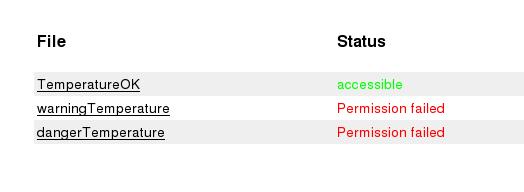
This script will check the temperature, write it in the file /tmp/tempFile and, as Monit can’t read content of files, set the permissions as the following:

if temp is OK, /tmp/tempFile permissions will be 700
if it is a warning temp, /tmp/tempFile permissions will be 710
If it is a danger temp, /tmp/tempFile permissions will be 712

Later, Monit will check the permissions of this file, so it will know if the system is in trouble.

Run the script to test it:
carlos@shirley:~/hardware$ ./monit.temperature.sh
Temperature is: 45
Temp OK

Throubleshooting: if you get no result,
carlos@shirley:~/hardware$ ./monit.temperature.sh
Temperature is:
Temp OK
edit the script and change CPU with the name of the line with the info (delete «temp3» and write «CPU» i.e) where you can see the temperature runnning «sensors»:
carlos@shirley:~/hardware$ nano monit.temperature.sh
temp=$(sensors | grep temp3) <-- Replace temp3 with CPU or a string of the output "sensors".

Now, install it in your crontab to be executed every minute:
# crontab -e
* * * * * /home/carlos/monit.temperature.sh

3º) Install and run Monit (not Mmonit, his commercial brother). Monit is GNU. Here you can see a quick guide.
Monit is an utility for monitoring systems (HD, processes, resources, connectivity, networks…), sending alerts and taking actions . Install it:

# sudo apt-get install monit
(or download last version here)

4º) Add these lines to /etc/monit/monitrc
# sudo nano /etc/monit/monitrc
[...]
check file TemperatureOK with path /tmp/tempFile
if failed permission 700 then alert
check file warningTemperature with path /tmp/tempFile
if failed permission 710 then alert
check file dangerTemperature with path /tmp/tempFile
if failed permission 712 then alert
[...]

for checking the correct syntax of Monit’s control file, run:
# sudo monit -tc /etc/monit/monitrc
Control file syntax OK

And restart it
# sudo /etc/init.d/monit restart

5º) Check Monit’s web interface, you will get something like this:
http://172.26.0.1:2812 (default: admin // monit)
monit.temperature.example

h1

Cómo consultar la temperatura de CPU y placa base en Linux con lm-sensors

26/04/2009

Actualización (octubre de 2026): la transcripción original utiliza módulos de controladores de Linux 2.6 y debe considerarse histórica. Para Debian o Ubuntu actuales, la comprobación básica suele ser:

sudo apt update
sudo apt install lm-sensors
sensors

Si no se detectan sensores, puedes consultar sudo sensors-detect, leyendo sus indicaciones antes de aceptar cargar módulos. La disponibilidad de sensores depende de la placa base, el firmware y el soporte del kernel. No presupongas que los módulos de 2009 siguen existiendo.

Qué comprobar

Contrasta las temperaturas con la información del firmware UEFI/BIOS cuando esté disponible; si aparecen lecturas imposibles, comprueba antes si corresponden a sensores sin soporte o mal interpretados.


En GNU/Linux existe el comando «sensors» para mostrar en consola la información de los sensores de la placa base. Previamente estos deben haber sido activados en la BIOS. Para ver la temperatura se pueden seguir los siguientes pasos:

[root@server4 /]# sensors
Can't access procfs/sysfs file
Unable to find i2c bus information;
For 2.6 kernels, make sure you have mounted sysfs and done
'modprobe i2c_sensor'!
For older kernels, make sure you have done 'modprobe i2c-proc'!

[root@server4 /]# modprobe i2c_sensor
[root@server4 /]# sensors
No sensors found!
[root@server4 /]# sensors-detect (responder Intro a todo lo que pregunte)

This program will help you determine which I2C/SMBus modules you need to
load to use lm_sensors most effectively. You need to have i2c and
lm_sensors installed before running this program.
Also, you need to be `root', or at least have access to the /dev/i2c-*
files, for most things.
If you have patched your kernel and have some drivers built in, you can
safely answer NO if asked to load some modules. In this case, things may
seem a bit confusing, but they will still work.

It is generally safe and recommended to accept the default answers to all
questions, unless you know what you're doing.

We can start with probing for (PCI) I2C or SMBus adapters.
You do not need any special privileges for this.
Do you want to probe now? (YES/no):
Probing for PCI bus adapters...
Sorry, no PCI bus adapters found.

We will now try to load each adapter module in turn.
If you have undetectable or unsupported adapters, you can have them
scanned by manually loading the modules before running this script.

To continue, we need module `i2c-dev' to be loaded.
If it is built-in into your kernel, you can safely skip this.
i2c-dev is not loaded. Do you want to load it now? (YES/no):
Module loaded succesfully.

We are now going to do the adapter probings. Some adapters may hang halfway
through; we can't really help that. Also, some chips will be double detected;
we choose the one with the highest confidence value in that case.
If you found that the adapter hung after probing a certain address, you can
specify that address to remain unprobed. That often
includes address 0x69 (clock chip).

Some chips are also accessible through the ISA bus. ISA probes are
typically a bit more dangerous, as we have to write to I/O ports to do
this. This is usually safe though.

Do you want to scan the ISA bus? (YES/no):
Probing for `National Semiconductor LM78'
Trying address 0x0290... Failed!
Probing for `National Semiconductor LM78-J'
Trying address 0x0290... Failed!
Probing for `National Semiconductor LM79'
Trying address 0x0290... Failed!
Probing for `Winbond W83781D'
Trying address 0x0290... Failed!
Probing for `Winbond W83782D'
Trying address 0x0290... Failed!
Probing for `Winbond W83627HF'
Trying address 0x0290... Success!
(confidence 8, driver `w83781d')
Probing for `Winbond W83697HF'
Trying address 0x0290... Failed!
Probing for `Silicon Integrated Systems SIS5595'
Trying general detect... Failed!
Probing for `VIA Technologies VT82C686 Integrated Sensors'
Trying general detect... Failed!
Probing for `VIA Technologies VT8231 Integrated Sensors'
Trying general detect... Failed!
Probing for `ITE IT8705F / IT8712F / SiS 950'
Trying address 0x0290... Failed!
Probing for `IPMI BMC KCS'
Trying address 0x0ca0... Failed!
Probing for `IPMI BMC SMIC'
Trying address 0x0ca8... Failed!

Some Super I/O chips may also contain sensors. Super I/O probes are
typically a bit more dangerous, as we have to write to I/O ports to do
this. This is usually safe though.

Do you want to scan for Super I/O sensors? (YES/no):

Probing for `ITE 8702F Super IO Sensors'
Failed! (skipping family)
Probing for `Nat. Semi. PC87351 Super IO Fan Sensors'
Failed! (skipping family)
Probing for `SMSC 47B27x Super IO Fan Sensors'
Failed! (skipping family)
Probing for `VT1211 Super IO Sensors'
Failed! (0x52)
Probing for `Winbond W83627HF Super IO Sensors'
Success... found at address 0x0295
Probing for `Winbond W83627THF Super IO Sensors'
Failed! (0x52)
Probing for `Winbond W83637HF Super IO Sensors'
Failed! (0x52)
Probing for `Winbond W83697HF Super IO Sensors'
Failed! (0x52)
Probing for `Winbond W83697SF/UF Super IO PWM'
Failed! (0x52)
Probing for `Winbond W83L517D Super IO'
Failed! (0x52)

Do you want to scan for secondary Super I/O sensors? (YES/no): Probing for `ITE 8702F Super IO Sensors'
Failed! (skipping family)
Probing for `Nat. Semi. PC87351 Super IO Fan Sensors'
Failed! (skipping family)
Probing for `SMSC 47B27x Super IO Fan Sensors'
Failed! (skipping family)
Probing for `VT1211 Super IO Sensors'
Failed! (skipping family)

Now follows a summary of the probes I have just done.
Just press ENTER to continue:
Driver `w83781d' (should be inserted):
Detects correctly:
* ISA bus address 0x0290 (Busdriver `i2c-isa')
Chip `Winbond W83627HF' (confidence: 8)

Driver `w83627hf' (should be inserted):
Detects correctly:
* ISA bus address 0x0295 (Busdriver `i2c-isa')
Chip `Winbond W83627HF Super IO Sensors' (confidence: 9)

I will now generate the commands needed to load the I2C modules.
Sometimes, a chip is available both through the ISA bus and an I2C bus.
ISA bus access is faster, but you need to load an additional driver module
for it. If you have the choice, do you want to use the ISA bus or the
I2C/SMBus (ISA/smbus)?

To make the sensors modules behave correctly, add these lines to
/etc/modules.conf:

#----cut here----
# I2C module options
alias char-major-89 i2c-dev
#----cut here----

To load everything that is needed, add this to some /etc/rc* file:

#----cut here----
# I2C adapter drivers
modprobe i2c-isa
# I2C chip drivers
modprobe w83781d
modprobe w83627hf
# sleep 2 # optional
/usr/bin/sensors -s # recommended
#----cut here----


WARNING! If you have some things built into your kernel, the list above
will contain too many modules. Skip the appropriate ones! You really should
try these commands right now to make sure everything is working properly.
Monitoring programs won't work until it's done.

Do you want to generate /etc/sysconfig/lm_sensors? (YES/no): Copy prog/init/lm_sensors.init to /etc/rc.d/init.d/lm_sensors
for initialization at boot time.
[root@server4 /]#
[root@server4 /]#
[root@server4 /]#
[root@server4 /]# /etc/init.d/lm_sensors restart
Stopping lm_sensors: [ OK ]
Starting lm_sensors: [ OK ]
[root@server4 /]#
[root@server4 /]#
[root@server4 /]# sensors
w83627hf-isa-0290
Adapter: ISA adapter
VCore 1: +0.00 V (min = +0.00 V, max = +0.00 V) ALARM
VCore 2: +0.00 V (min = +0.00 V, max = +0.00 V) ALARM
+3.3V: +0.00 V (min = +3.14 V, max = +3.46 V)
+5V: +5.03 V (min = +4.73 V, max = +5.24 V) ALARM
+12V: +0.00 V (min = +10.82 V, max = +13.19 V)
-12V: -14.91 V (min = -13.18 V, max = -10.88 V)
-5V: -7.71 V (min = -5.25 V, max = -4.75 V)
V5SB: +5.59 V (min = +4.73 V, max = +5.24 V) ALARM
VBat: +1.12 V (min = +2.40 V, max = +3.60 V)
fan1: 0 RPM (min = 3026 RPM, div = 2)
fan2: 0 RPM (min = 10074 RPM, div = 2)
fan3: 0 RPM (min = 4326 RPM, div = 2)
temp1: +127°C (high = +48°C, hyst = +115°C) sensor = thermistor
temp2: +127.0°C (high = +80°C, hyst = +75°C) sensor = thermistor ALARM
temp3: +127.0°C (high = +80°C, hyst = +75°C) sensor = thermistor ALARM
ERROR: Can't get VID data!
alarms: Chassis intrusion detection ALARM
beep_enable:
Sound alarm disabled


En Debian ó Ubuntu concretamente sería parecido a:

root@shirley:/var/cache/apt/archives# apt-get install lm-sensors
Leyendo lista de paquetes... Hecho
Creando árbol de dependencias
Leyendo la información de estado... Hecho
Se instalarán los siguientes paquetes extras:
libsensors4
Paquetes sugeridos:
sensord read-edid i2c-tools
Se instalarán los siguientes paquetes NUEVOS:
libsensors4 lm-sensors
0 actualizados, 2 se instalarán, 0 para eliminar y 0 no actualizados.
Necesito descargar 191kB de archivos.
Se utilizarán 795kB de espacio de disco adicional después de desempaquetar.
¿Desea continuar [S/n]?
Des:1 http://archive.ubuntu.com intrepid/main libsensors4 1:3.0.2-1ubuntu2 [64,7kB]
Des:2 http://archive.ubuntu.com intrepid/main lm-sensors 1:3.0.2-1ubuntu2 [126kB]
Descargados 191kB en 0s (333kB/s)
Seleccionando el paquete libsensors4 previamente no seleccionado.
(Leyendo la base de datos ...
155498 ficheros y directorios instalados actualmente.)
Desempaquetando libsensors4 (de .../libsensors4_1%3a3.0.2-1ubuntu2_amd64.deb) ...
Seleccionando el paquete lm-sensors previamente no seleccionado.
Desempaquetando lm-sensors (de .../lm-sensors_1%3a3.0.2-1ubuntu2_amd64.deb) ...
Procesando activadores para man-db ...
Configurando libsensors4 (1:3.0.2-1ubuntu2) ...
udev active, devices will be created in /dev/.static/dev/
Creating config file /etc/sensors3.conf with new version
Configurando lm-sensors (1:3.0.2-1ubuntu2) ...

Procesando activadores para libc6 ...
ldconfig deferred processing now taking place

Detección e instalación de sensores:

carlos@WhenIGrowUp:/$ sudo sensors-detect
[sudo] password for carlos:
# sensors-detect revision 5016 (2007-11-11 22:20:16 +0100)
This program will help you determine which kernel modules you need
to load to use lm_sensors most effectively. It is generally safe
and recommended to accept the default answers to all questions,
unless you know what you're doing.
(...)
To load everything that is needed, add this to /etc/modules:
#----cut here----
# Chip drivers
it87
k8temp
#----cut here----

Do you want to add these lines automatically? (yes/NO)yes

# modprobe it87 k8temp

y muestreo de la temperatura:

root@shirley:/var/cache/apt/archives# sensors
k8temp-pci-00c3
Adapter: PCI adapter
Core0 Temp: -49.0°C
Core1 Temp: +111.0°C <- Valor falso

it8712-isa-0290
Adapter: ISA adapter
VCore 1: +1.14 V (min = +0.00 V, max = +4.08 V)
VCore 2: +4.08 V (min = +0.00 V, max = +4.08 V) ALARM
+3.3V: +3.36 V (min = +0.00 V, max = +4.08 V)
+5V: +6.85 V (min = +0.00 V, max = +6.85 V) ALARM
+12V: +12.74 V (min = +0.00 V, max = +16.32 V)
-12V: -15.33 V (min = -27.36 V, max = +3.93 V)
-5V: +4.03 V (min = -13.64 V, max = +4.03 V) ALARM
Stdby: +6.85 V (min = +0.00 V, max = +6.85 V) ALARM
VBat: +3.20 V
fan1: 1126 RPM (min = 0 RPM)
fan2: 3169 RPM (min = 0 RPM)
M/B Temp: +100.0°C (low = -1.0°C, high = +127.0°C) sensor = thermistor
CPU Temp: +43.0°C (low = -1.0°C, high = +127.0°C) sensor = thermistor
Temp3: -128.0°C (low = -1.0°C, high = +127.0°C) sensor = disabled
cpu0_vid: +1.550 V

Otros artículos relacionados: Revisar problemas de ahorro de energía en KDE

h1

como instalar la impresora hp photosmart c6100 ó 6180 en Kubuntu

06/07/2008

La HP photosmart c6100 (ó c6180) no funciona por defecto en Kubuntu Hardy Heron. Es necesario instalar unas versión posterior de HPLIP. Para ello se desinstalará la versión actual, se descargará la última versión de la web de HPLIP y se ejecutará:

sudo apt-get remove --purge hpoj
chmod 777 hplip-2.8.6.run
./hplip-2.8.6.run

h1

HP Office G85 en Linux Kubuntu

29/12/2006

Intentando instalar la impresora HP Office G85 bajo KDE (Kubuntu 6.10) lograba instalarla correctamente pero no imprime nada. Probando a través de Gnome funciona perfectamente, por lo que parece que debe haber algún error en el paquete de KDE…

Se soluciona completando los siguientes pasos:

1º) apt-get remove –purge hplips
2º) apt-get install hplips

3º) Bajar y utilizar de http://hplip.sourceforge.net/install/index.html el installer.