Archive for the ‘Linux y administración de sistemas’ Category

h1

KDE y Kubuntu: el monitor no entra en suspensión o vuelve a encenderse

23/01/2022

Actualización (octubre de 2026): la solución descrita originalmente corresponde a un problema observado en versiones anteriores de KDE/KScreen. No está comprobado que se aplique a todas las versiones modernas de Plasma.

Comprobaciones previas

Comprueba la versión de Plasma, el tipo de sesión (Wayland o X11), los ajustes de ahorro de energía y si alguna aplicación está inhibiendo la suspensión de pantalla. Antes de deshabilitar servicios o componentes de KScreen, revisa el estado actual de los informes de errores enlazados más abajo y prueba cambios reversibles.

Se conserva la solución original como referencia del incidente histórico.


Al intentar configurar la suspensión de energía en KDE, de cara a que se apague automaticamente el monitor tras unos minutos, parece que hay un bug en KDE que en algunos sistemas impide que se apague. Son ejemplos estos casos reportados:

kscreen2 kicks monitor out of power save mode

When I assign a key combination to turn off the screen and apply it the display output stays off only for one second and then power on again automatically …

[KScreen] [Bug 426609] New: kscreen2 kicks monitor out of power save mode

Esto afecta modo ahorro de energía del monitor. Parece que es un bug conocido que afecta al proceso «kscreen2«. Para solucionarlo temporalmente, basta con desactivar su arrancando automático, de modo que el usuario lo arranque manualmente cuando lo necesite. Para ello:

  1. Entrar en las preferencias del sistema.

  2. En ellas, acceder a «Arranque y apagado». Dentro, navegar a «Servicios en segundo plano»

  3. En el panel de «Servicios de inicio», desmarcar «Kscreen 2». Aplicar los cambios.

  4. Para activar el ahorro de energía, entrar desde las «Preferencias del sistema» anteriores, a «Ahorro de energía y configurar al gusto:

Otros artículos relacionados: Sensores de temperatura en Linux

h1

Rclone en Linux: montar almacenamiento remoto y copiar archivos

07/04/2020

Actualización (octubre de 2026): este artículo reúne comandos empleados en una instalación concreta de rclone. Los nombres de remotos y rutas del ejemplo original son particulares de aquel entorno.

Ejemplo genérico

rclone config
mkdir -p ~/remoto
rclone mount remoto: ~/remoto

La configuración previa debe crear un remoto denominado remoto. El montaje necesita soporte FUSE y se mantiene activo mientras siga ejecutándose el proceso; para usarlo como servicio se requiere una configuración adicional. No añadas --allow-other sin comprender sus implicaciones de acceso. Para copiar archivos, una sintaxis general es rclone copy origen/ remoto:destino/. Revisa siempre las rutas reales antes de ejecutar la copia.

Relacionado: copias de seguridad en Linux.


Montar Google Drive en Linux (tras añadirlo con rclone config):

carlos@rock64:~/plex$  rclone mount uc3m:/NAS/peliculas/ /home/carlos/plex/peliculas/ –allow-other  &

para copiar ficheros:

carlos@rock64:~$ rclone copy Regg_Fix_Sunrise.reg uc3mcifrado:/cifrado1/

y para acceder a una instalación de Plex desde tu red local, utilizar la siguiente tipología:

http://192.168.1.5:32400/

Una alternativa a Rclone es AirExplorer con un emulador para Windows como Wine.

Otros artículos relacionados: Copias de seguridad en Linux

h1

Linux: solucionar «unknown filesystem type exfat»

02/12/2018

Actualización (2026): esta solución se documentó para Ubuntu 18.04 y utilizaba exfat-fuse y exfat-utils. En distribuciones modernas suele existir soporte exFAT en el kernel y se pueden necesitar utilidades como exfatprogs para crear o comprobar el sistema de archivos. Antes de instalar paquetes, confirma la versión del sistema, el tipo de partición con lsblk -f y los mensajes del kernel. No formatees el dispositivo para solucionar un problema de montaje sin antes recuperar los datos.


If trying to mount an exfat file system we get the following error:

carlos@rock64:~$ sudo mount /dev/sda1 /media/pendrive/
[sudo] password for carlos:
mount: /media/pendrive: unknown filesystem type 'exfat'.


It is just necessary to install the «exfat-fuse« package:
carlos@whenIGrewUp:~$ sudo apt-get install exfat-fuse
Leyendo lista de paquetes... Hecho
Creando árbol de dependencias
Leyendo la información de estado... Hecho
El paquete indicado a continuación se instaló de forma automática y ya no es necesario.
shim
Utilice «sudo apt autoremove» para eliminarlo.
Se instalarán los siguientes paquetes adicionales:
exfat-utils
Se instalarán los siguientes paquetes NUEVOS:
exfat-fuse exfat-utils
0 actualizados, 2 nuevos se instalarán, 0 para eliminar y 22 no actualizados.
Se necesita descargar 64,4 kB de archivos.
Se utilizarán 273 kB de espacio de disco adicional después de esta operación.
¿Desea continuar? [S/n]
Des:1 http://es.archive.ubuntu.com/ubuntu bionic/universe amd64 exfat-fuse amd64 1.2.8-1 [24,5 kB]
Des:2 http://es.archive.ubuntu.com/ubuntu bionic/universe amd64 exfat-utils amd64 1.2.8-1 [39,9 kB]
Descargados 64,4 kB en 0s (296 kB/s)
Seleccionando el paquete exfat-fuse previamente no seleccionado.
(Leyendo la base de datos ... 231016 ficheros o directorios instalados actualmente.)
Preparando para desempaquetar .../exfat-fuse_1.2.8-1_amd64.deb ...
Desempaquetando exfat-fuse (1.2.8-1) ...
Seleccionando el paquete exfat-utils previamente no seleccionado.
Preparando para desempaquetar .../exfat-utils_1.2.8-1_amd64.deb ...
Desempaquetando exfat-utils (1.2.8-1) ...
Configurando exfat-utils (1.2.8-1) ...
Configurando exfat-fuse (1.2.8-1) ...
Procesando disparadores para man-db (2.8.3-2ubuntu0.1) ...

After this, device will be perfectly mounted:
carlos@whenIGrewUp:~$ sudo mount /dev/sdd1 /media/pendrive/
FUSE exfat 1.2.8
carlos@whenIGrewUp:~$

Otros artículos relacionados: Trabajar con NTFS desde Linux

h1

Fstab error message on boot: maintenance mode

03/08/2018

If booting a Debian/Ubuntu system we get a error of fstab, asking us to enter at maintenance mode or Control-D to continue, even having a «nobootwait» flag at Fstab file, change it with «nofail» as «noboowait» has been deprecated.


UUID=1EF0-3965 /media/discoalicante vfat defaults,nobootwait 0 0

UUID=1EF0-3965 /media/discoalicante vfat defaults,nofail 0 0

h1

Error Failed to process /etc/kernel/postinst.d at /var/lib/dpkg/info/linux-image-3.0.0-32-server.postinst line 1010.

28/07/2013

Si al actualizar un kernel ocurre este error:

carlos@test:~/ apt-get upgrade
Leyendo lista de paquetes... Hecho
Creando árbol de dependencias
Leyendo la información de estado... Hecho
0 actualizados, 0 se instalarán, 0 para eliminar y 0 no actualizados.
1 no instalados del todo o eliminados.
Se utilizarán 0B de espacio de disco adicional después de esta operación.
¿Desea continuar [S/n]? S
Configurando linux-image-3.0.0-32-server (3.0.0-32.51~lucid1) ...
Running depmod.
update-initramfs: Generating /boot/initrd.img-3.0.0-32-server
Running postinst hook script /usr/sbin/update-grub.
Generating grub.cfg ...
Found linux image: /boot/vmlinuz-3.0.0-32-server
Found initrd image: /boot/initrd.img-3.0.0-32-server
Found memtest86+ image: /boot/memtest86+.bin
done
Examining /etc/kernel/postinst.d.
run-parts: executing /etc/kernel/postinst.d/dkms 3.0.0-32-server /boot/vmlinuz-3.0.0-32-server
run-parts: /etc/kernel/postinst.d/dkms exited with return code 2
Failed to process /etc/kernel/postinst.d at /var/lib/dpkg/info/linux-image-3.0.0-32-server.postinst line 1010.
dpkg: error al procesar linux-image-3.0.0-32-server (--configure):
el subproceso instalado el script post-installation devolvió el código de salida de error 2
Se encontraron errores al procesar:
linux-image-3.0.0-32-server
E: Sub-process /usr/bin/dpkg returned an error code (1)

El estado inestable del gestor de paquetes de Debian/Ubuntu se puede solucionar borrando los scripts de instalación:

carlos@test:~/ sudo rm -f /var/lib/dpkg/info/linux-image-3.0.0-32-server.post*
carlos@test:~/ sudo rm -f /var/lib/dpkg/info/linux-image-3.0.0-32-server.pre*
carlos@test:~/ sudo apt-get -f install

h1

How to create an egg for the GCP in Linux

09/06/2013

Updated: Finnaly a GCP egg can be configured in this link.

These instructions show how to create an egg in a PC with GNU/Linux  for the GCP, although these instructions can be used as clues when creating an egg on Windows, as steps are the same.

First of all, take in consideration that the egg you will creat should be running 24h/365days. For joining at GCP it is necessary a special hardware issued by the GCP manager, so you will have to send an email to phd Roger Nelson with the following information:

1º) Postal address for sending the device, telephone number for eventual problems, GPS location of the future node for placing it at the eggs map.
2º) your IP address, that is, the IP address of the computer that will be hosting the egg. It must be the routable IP, which you can learn by point a browser at the website whatismyip.com , or an URL (like DynDNS).
3) Operating system and hardware you are using to deploy the server.
4) If you wish, you can have a link to your personal website or to an affiliated university or business in the table that shows egg status.

He will answer you with a configuration file to run the egg. After this, lets follow this steps:

0.- Have your server ready. You need any computer with an Internet connection and a port to plug the special hardware.

If you are sent a serial-port device and you are using a Raspberry Pi, just notice it is not compatible with the GCP Orion device (may be with others devices), as the minimun required voltage is 5V, while the Raspberry PI uses 3’3V.

RaspberryPi-Hand

Just for information reasons, I have tried with:

– Raspberry Pi serial port adaptor at DealExtreme.com
– Raspberry Pi serial port adaptor at Miniinthebox.com and male to male adaptor.
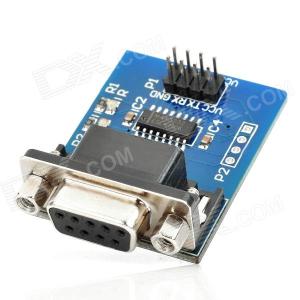
rs232_dx_sku_144192_1

So while using a Raspberry Pi PC and an Orion device, a serial-USB adaptor may not be a good idea, as the one i tested didn’t get valid data from the random generator device. With the serial port, plug the GCP device into the Raspberry Pi in this way, but it will not either work as the voltage is not enough.

At this point, just notice i could’nt make Raspberry Pi work with the Orion device. Instructions for a common PC are:

1.- Install the operating system. Debian is a good option as it has the last GCP packages at its repositories.

2.- Set a fixed ip. Later, install the SSH daemon:

$ sudo apt-get install openssh-server

and do a full update of the system:
$ sudo apt-get update
$ sudo apt-get upgrade

finally, reboot:
$ sudo reboot

3.- It is mandatory to sync periodically date and hour. To get this command executed daily, follow this instructions:
$ sudo apt-get install ntpdate
$ sudo sudo cron -e
Add this line:
15 1 * * * /usr/sbin/ntpdate -ud hora.rediris.es
save and exit.

4.- It is necessary to specify to the GCP the public IP you are using (not the LAN one). As in general people have a dynamic one (changed everytime there is a router reboot, power failure or at ISP desire), you can use a trick which will allow to bypass this problem. The idea is to publish your IP in a DNS system, like DynDNS, and tell GPC to listen data from that address (as authentication method). Follow these steps:

4.1 Register an account at DynDNS.org (there are many alternatives on the web, as good as this, and the steps will be so similar).
4.2 Logged in that account, create a subdomain, for example «eggMADRID.ath.cx»
4.3 Download and install a software to update your ip for that subdomain:
$ sudo apt-get install dyndns
4.4 Configure that client with you settings (username, password and subdomain).
4.5 Do a test: reboot your router (for changing the IP), execute the client and ask somebody (from another Internet connection) to ping that subdomain. If the IP matches your new IP), you are done.
4.5 Add the updater command to the cron like in the step 3, so everyday your IP will be sent to the DynDNS servers.

There are tons of help, documentation, feedback, forums, experts and solutions for this point on Internet.

5. Preparing the GCP software. Donwload it here depending of the device you have. If you have a 32bits operating system, you can download the binary or in Debian/Ubuntu/Raspbian, do:

$ sudo apt-get install gcpegg

If you have a Linux 64 bits enviroment, you have to download the sources and overwrite some files with the patch developed by Fernando Lucas, or download this full package, or install at least the 5.1-13 version at Debian/Ubuntu repositories (ensure you have available at least that version):

pi@raspberrypi ~ $ apt-cache show gcpegg
Package: gcpegg
Version: 5.1-13

orion
About the device, the GCP software will look for it at these and only these locations:

  • /dev/ttydNUMBER
  • /dev/term/NUMBER
  • /dev/ttySNUMBER

If you haven’t it on any of these paths, you have two options to make it work:

a) Make a link (recommended)
ln -s /dev/YOUR_DEVICE /dev/ttyS0

b) Modify the source code file (reg_pear.c) so the software will look at the place you want (not recommended).

reg_pear.c: sprintf(ttydev, "/dev/ttyd%d", opts->port);
reg_pear.c: sprintf(ttydev, "/dev/term/%c", 'a' + (opts->port - 1));
reg_pear.c: sprintf(ttydev, "/dev/ttyS%d", opts->port); --> reg_pear.c: sprintf(ttydev, "/dev/YOUR_REAL_DEVICE", opts->port);

Finally, you can use a compiled package or use sources. In the last case, do:
make clean
make

In the software folder, copy the file «.eggrc» (given to you by Roger Nelson), which should be similar to this:

EGG egg.madrid.es 3066 pilar002.ath.cx noosphere PERM 1
BASKET noosphere 64.7.11.43
PROTOCOL 10 10 30 200
REG ORION 0 9600

6.- At your Internet connection (router), open the ports UDP 2510 and UDP 1105, pointing to the internal IP of your CPU running the GCP software (the one set at step 2). There are many tutorials on Internet, specifying your router brand you will get specific information.

7.- For automatic starting the process after each reboot and testing it is running each minute, it is necessary to include these two small scripts, adapting the paths to your settings, or use instead this i have created which may be even more useful as it sends you an automatic email if there are problems. For this, please install «sendemail»:

$ sudo apt-get install sendemail libnet-ssleay-perl libio-socket-ssl-perl libio-socket-inet6-perl

and save this script at the same path than eggsh (adapting your email settings):

#!/bin/sh

if ps aux | grep '/eggsh' | grep -v grep
then
echo Egg is running.
else
echo Starting egg
nohup /home/carlos/egg/eggsh &
/usr/bin/sendemail -f FROM_EMAIL\@gmail.com -t TO_EMAIL\@gmail.com -s smtp.gmail.com:587 -u 'Egg GCP, problem' -m 'GCP egg, process not found' -v -xu CHANGE_FOR_USER -xp CHANGE_FOR_PASSWORD -o tls=yes
fi

It is adviced to test the sendemail command previously in a shell. If you get an error like this:
invalid SSL_version specified at /usr/share/perl5/IO/Socket/SSL.pm line 332
check this workaround.

Later, give execution permissions:

$ chmod 755 check_egg.sh eggsh

and add at the root cron the first script:
$ sudo crontab -e
* * * * * /home/carlos/egg/check_egg.sh

8.- Tests: When everything seems to work, reboot the system:
$ sudo reboot

and check everything:
$ ps uax | grep eggsh
$ ping google.es
$ /home/pi/egg/regtest /dev/ttyS0 9600
$ killall -9 eggsh  (after one minute, the eggsh should be automatically the re-started again)

9.- Send an email to Roger Nelson to annouce him your egg is ready and working. He will confirm you if everything is fine at the server side.
gcp.map

TROUBLESHOOTING

If you have problems, first of all check these advices:

1º) Give permissions to your device:
chmod 755 /dev/ttyS0 (or the file that matches your device)

2º) Run eggsh as root.

3º) Check you have a similar output like this:
carlos@shirley:~/egg$ ldd eggsh
linux-vdso.so.1 => (0x00007fffca9cf000)
libncurses.so.5 => /lib/libncurses.so.5 (0x00007fa2481d4000)
libc.so.6 => /lib/libc.so.6 (0x00007fa247e4e000)
libdl.so.2 => /lib/libdl.so.2 (0x00007fa247c49000)
/lib64/ld-linux-x86-64.so.2 (0x00007fa248434000)

4º) Check your .eggprotocolrc:
$ more .eggprotocolrc
if you have something like "PROTOCOL 30 51261 62464 0"
this is wrong, change for: "PROTOCOL 10 10 30 200"

5º) Check you are running the eggsh binary in a directory where exists a configure .eggrc file:
pi@raspberrypi ~/egg $ ls -la
drwxr-xr-x 2 pi pi 4096 Jun 9 19:40 .
drwxr-xr-x 6 pi pi 4096 Jun 8 11:43 ..
-rwx------ 1 pi pi 420 Jun 9 19:42 check_egg
-rw-r--r-- 1 pi pi 108 Jun 9 19:40 .eggprotocolrc
-rw-r--r-- 1 pi pi 125 Jun 5 23:02 .eggrc
-rw-r--r-- 1 pi pi 5 Jun 9 19:40 eggsample.pid
-rwxr-xr-x 1 pi pi 92963 May 31 17:04 eggsh
-rwxr-xr-x 1 pi pi 12071 May 31 17:04 regtest
-rwxrwxrwx 1 pi pi 51 Jun 9 19:40 run_egg.sh
-rwxr-xr-x 1 pi pi 693 May 31 17:04 sample.pppscript

6º) Try to update your system. In Ubuntu/debian it would be:
$ sudo apt-get update
$ sudo apt-get dist-upgrade
$ reboot

and start again this tutorial from the beginning.

h1

Error /usr/bin/openvt: not found

03/06/2013

If installing a package this error happens:

root@shirley:~# apt-get install gcpegg

Leyendo lista de paquetes... Hecho
Creando árbol de dependencias
Leyendo la información de estado... Hecho
Se instalarán los siguientes paquetes NUEVOS:
gcpegg
0 actualizados, 1 se instalarán, 0 para eliminar y 0 no actualizados.
Necesito descargar 41,0kB de archivos.
Se utilizarán 205kB de espacio de disco adicional después de esta operación.
Des:1 http://es.archive.ubuntu.com/ubuntu/ lucid/universe gcpegg 5.1-10 [41,0kB]
Descargados 41,0kB en 0seg. (88,9kB/s)
Seleccionando el paquete gcpegg previamente no seleccionado.
(Leyendo la base de datos ... 00%
183061 ficheros y directorios instalados actualmente.)
Desempaquetando gcpegg (de .../gcpegg_5.1-10_amd64.deb) ...
Procesando disparadores para ureadahead ...
ureadahead will be reprofiled on next reboot
Procesando disparadores para man-db ...
Configurando gcpegg (5.1-10) ...
Starting GCP EGG software on virtual terminal 8: eggsh/etc/init.d/gcpegg: 45: /usr/bin/openvt: not found
invoke-rc.d: initscript gcpegg, action "start" failed.
dpkg: error al procesar gcpegg (--configure):
el subproceso instalado el script post-installation devolvió el código de salida de error 127
Se encontraron errores al procesar:
gcpegg
E: Sub-process /usr/bin/dpkg returned an error code (1)

It is easy to check than the script is looking for a binary in a wrong path. To get the right path:
root@shirley:~# which openvt
/bin/openvt

SOLUTION
Doing a soft link and reinstalling:
root@shirley:~# ln -s /bin/openvt /usr/bin/openvt

root@shirley:~# apt-get install gcpegg
Leyendo lista de paquetes... Hecho
Creando árbol de dependencias
Leyendo la información de estado... Hecho
gcpegg ya está en su versión más reciente.
0 actualizados, 0 se instalarán, 0 para eliminar y 0 no actualizados.
1 no instalados del todo o eliminados.
Se utilizarán 0B de espacio de disco adicional después de esta operación.
Configurando gcpegg (5.1-10) ...
Starting GCP EGG software on virtual terminal 8: eggsh.

h1

ZIP corrupto: «start of central directory not found» y posibles reparaciones

25/10/2012

Nota técnica (2026): este mensaje puede deberse a descarga incompleta, transferencia incorrecta o corrupción del archivo, no necesariamente a superar 4 GB. Antes de repararlo, conserva una copia del fichero original y comprueba su tamaño y procedencia. La opción zip -FF intenta reconstruir la estructura, pero no garantiza recuperar todos los datos. Es preferible recuperar una copia íntegra cuando exista.

Relacionado: dividir y recomponer archivos grandes.


Si al descomprimir ficheros grandes, generalmente de más de 4 gigabytes, ocurre el siguiente error:

carlos@pc:~/downloads$ unzip Fichero.mayor.que.4.gigas.zip

Archive: Fichero.mayor.que.4.gigas.zip
warning [Fichero.mayor.que.4.gigas.zip ]: 4727417070 extra bytes at beginning or within zipfile
(attempting to process anyway)
error [Fichero.mayor.que.4.gigas.zip ]: start of central directory not found;
zipfile corrupt.
(please check that you have transferred or created the zipfile in the
appropriate BINARY mode and that you have compiled UnZip properly)

Se soluciona arreglándolo con las opciones «-FFv»:

carlos@pc:~/downloads$ zip -FFv Fichero.mayor.que.4.gigas.zip --out Fichero.mayor.que.4.gigas.FIXED.zip

Otros artículos relacionados: Dividir y unir archivos con split y cat

h1

Como arreglar arranque de Grub al instalarlo sobre Windows 7 64 bits.

15/04/2012

Al instalar Linux en un equipo con Windows 7 64 bits es habitual que el propio Grub no reconozca la partición de Windows, no incluyéndola por tanto en el arranque. Para solucionarlo es necesario realizar los siguientes pasos:

1.- Obtener el ID de la partición con Windows:
# sudo grub-probe --target=fs_uuid /boot/efi/efi/Microsoft/Boot/bootmgfw.efi
cafe-ed94

2.- Crear un script de opción de Grub con esa partición y su correspondiente ID. Para ello editar el de muestra, añadir las nuevas líneas y personalizar el ID con el obtenido en el paso anterior:
root@whenIgrewup:~# sudo nano /etc/grub.d/40_custom
#!/bin/sh
exec tail -n +3 $0
# This file provides an easy way to add custom menu entries. Simply type the
# menu entries you want to add after this comment. Be careful not to change
# the 'exec tail' line above.

menuentry "Windows x86_64 UEFI-GPT" {
search --fs-uuid --no-floppy --set=root cafe-ed94
chainloader (${root})/efi/Microsoft/Boot/bootmgfw.efi
}

3.- Actualizar Grub:
#sudo update-grub

Además, para aumentar el timeout y que se muestre durante más tiempo el menú de Grub, es necesario editar el fichero resultante
# sudo nano /boot/grub/grub.cfg

cambiando todas las ocurrencias de «timeout» de -1 a «5» por ejemplo.

Fuentes: http://superuser.com/questions/404263/grub2-fails-to-chainload-windows-7-with-error-invalid-signature
https://help.ubuntu.com/community/UEFIBooting#Chainloading_Windows_x86_64_UEFI-GPT

h1

monit: Error opening the idfile ‘/var/lib/monit/id’ — No such file or directory

17/02/2012

Si al ejecutar Monit 5.3.2 ocurre el siguiente error:

root@shirley:~# monit
monit: Error opening the idfile '/var/lib/monit/id' -- No such file or directory
Starting monit daemon with http interface at [*:4000]
Monit start delay set -- pause for 120s

Es necesario crear el path que indica:
root@shirley:~# mkdir /var/lib/monit

de modo que al arrancarlo creará la huella de la sesión:
root@shirley:~# monit
monit: generated unique Monit id 61cd39f959ea5fd0ea34b587ab836517 and stored to '/var/lib/monit/id'
Starting monit daemon with http interface at [*:4000]
Monit start delay set -- pause for 120s
root@shirley:~# ps axu | grep monit
root 26000 0.0 0.0 33984 744 ? S 21:11 0:00 monit
root 26002 0.0 0.0 7688 824 pts/1 S+ 21:11 0:00 grep --color=auto monit

y funcionará correctamente. Además, en algunas ocasiones es necesario corregir el path incluido del binario en /etc/init.d/monit