Archive for the ‘Servidores y aplicaciones web’ Category

h1

PHP y Joomla: configurar output_buffering y sus limitaciones

19/02/2012

Actualización (2026): la directiva php_value en .htaccess solo es aplicable en ciertas configuraciones de Apache/PHP; puede fallar con PHP-FPM u otros modos y generar un error 500. Antes de cambiarla, identifica la versión de PHP y su modo de ejecución. No desactives el buffering de salida sin una necesidad concreta y comprobaciones de funcionamiento.


Para desactivar «búferes de salida» («output buffers) en PHP para Joomla es necesario

1º) Crear o editar el fichero «.htaccess» en la raíz de Joomla.

2º) Añadir la siguiente línea:
php_value output_buffering "0"

Otros artículos relacionados: Recarga de Apache · Errores 403 de Joomla
h1

How to enable SSL in amuleweb

18/02/2012

For accessing through a cyphered connection like SSL to the web interface «amuleweb» of aMule, it is necesary to install a webserver like Apache2, which will act like a reverse proxy. It is needed to complete these steps:

1º) Install Apache

sudo apt-get install apache2

2º) Install the http proxy module of Apache2:

sudo apt-get install libapache2-mod-proxy-html

3º) Enable proxy modules:

sudo a2enmod proxy
sudo a2enmod proxy_http


4º) Add these 2 lines for amule configuration in the SSL default site of Apache2:

sudo nano /etc/apache2/sites-enabled/default-ssl

(...)
ServerAdmin webmaster@localhost

ProxyPass /amule/ http://172.26.0.5:4711/

DocumentRoot /var/www
(...)

5º) Restart Apache2
/etc/init.d/apache2 restart

6º) Browse this address:
https://CHANGE_THIS_FOR_THE_LOCAL_IP_OF_YOUR_SERVER:443/amule/

Remember than for any trouble you can check /var/log/apache2/error.log

h1

Como poner Magento en Español

06/03/2011

Although the system seems to offer the posibility to change the language, the language pack is not included by default. So, go to this link to download the language pack.
http://www.magentocommerce.com/translations
Now
1. download language files and place them into the right folders (app >design >frontend >default >default >local)
2. Login to admin panel and go to System > Manage stores
3. Create a new store view or modify
4. Login to admin panel and go to System > Configuration > General
and select each store view from “Current Configuration Scope” drop down menu at the upper left corner of the window.
Set the corresponding locale for each store view

5. Clear the cache (System – Cache Management)

Fuente: MagentoCommerce.com

h1

Joomla, blank page when clicking on «buy» on VirtueMart

06/03/2011

Several times managing a VirtueMat 1.1.x on Joomla 1.5.x may produce blank pages during the shopping process.

To avoid them it is recommended to check and update all the Artio products installed, like the Artio JoomSEF or Artio Google Analytics Tracking Pluging, to the lastest version as many bugs when interacting with e-commerce have been detected and solved.

h1

Error al instalar VirtueMart_1.1.7a en Joomla 1.5.x

06/03/2011

Si al instalar la versión VirtueMart_1.1.7a-COMPLETE_PACKAGE.j15.zip en Joomla 1.5.x se produce el siguiente error al crear el escaparate de prueba:

ERROR!

a) No Archive Files and
b) no directory structure for VirtueMart.

What's wrong? Either YOU unpack all the files and upload them or I do that (I can do that when Safe Mode is OFF).

se debe a un bug en esa versión. Se puede solventar, como workaround, instalando la versión anterior (1.1.6) y posteriormente parchearla.

h1

Joomla error, You don’t have permission, a 403 Forbidden error was encountered

03/03/2011

Si en Joomla ocurre este error:

Forbidden
You don't have permission to access /joomla/index.php on this server.
Additionally, a 403 Forbidden error was encountered while trying to use an ErrorDocument to handle the request.
Apache Server at midominio.com Port 80

Se soluciona otorgando los permisos correctos recursivamente:

c@h1 [~/public_html]# find . -type d -exec chmod 755 {} \;
c@h1 [~/public_html]# find . -type f -exec chmod 644 {} \;

h1

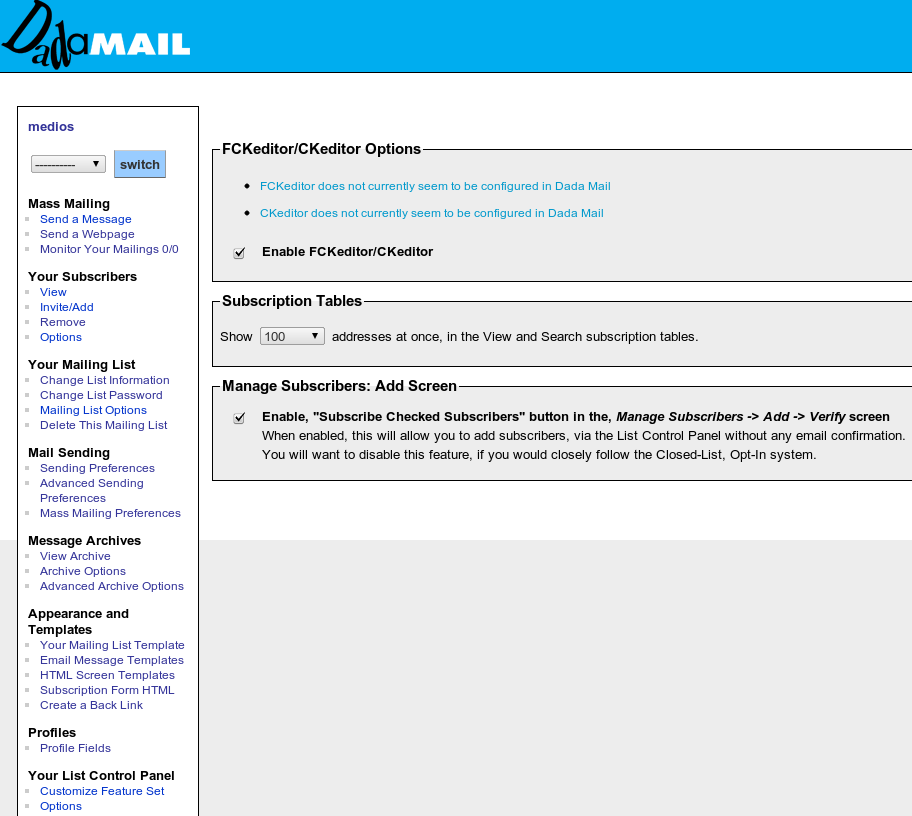
Dadamail, cómo suscribir direcciones sin enviar autorización

18/12/2010

En el gestor de listas de correo o newsletters cómo Dadamail puede ser necesario suscribir direcciones de correo sin tener que enviar una autorización a los usuarios, como frecuentemente pasa en las migraciones de Mailman a Dadamail. Por defecto no aparece esta opción, y por eso es necesario seguir los siguientes pasos:

1º) Editar el fichero de configuración cambiando a «0» el valor de $ENFORCE_CLOSED_LOOP_OPT_IN :

/dadamail/DADA]# nano Config.pm
$ENFORCE_CLOSED_LOOP_OPT_IN ||= 0;

2º) A través del panel de control web, ir a «Your List Control Panel», sección «Options» y marcar la opción «Enable Subscribe Checked Subscribers».

h1

Joomla, poner las impresiones o hits de todos los artículos a cero

13/12/2010

Para poner el campo impresiones a cero de todos los artículos de un sitio en Joomla 1.5, es necesario ejecutar esta sentencia SQL (accesible por ejemplo mediante el interfaz PhpMyAdmin):

update jos_content set hits = 0

h1

Error mod_jw_srfr/includes/simplepie/simplepie.inc on line 7804 utilizando JoomlaWorks Simple RSS Feed Reader Module v2.1 for Joomla

05/09/2010

Si utilizando «JoomlaWorks Simple RSS Feed Reader Module v2.1 for Joomla! 1.5» ocurre el siguiente error:

Warning: file_get_contents(http:) [function.file-get-contents]: failed to open stream: No such file or directory in /home1/cdsclmco/public_html/modules/mod_jw_srfr/includes/simplepie/simplepie.inc on line 7804

es facilmente solucionable editando la lista de URLs de RSS’s y eliminando la última línea, que está en blanco.

h1

Joomla, Warning imagettftext() [function.imagettftext] Could not find/open font in /var/www/myuidigitalframe/plugins/content/text2imagehelper.php on line 77

31/08/2010

Utilizando el plugin «text2image» de Joomla (el cual convierte texto a imagen) puede ocurrir el siguiente error:

Warning: imagettftext() [function.imagettftext]: Could not find/open font in /var/www/myuidigitalframe/plugins/content/text2imagehelper.php on line 77

se soluciona aplicando los siguientes pasos:

1º) Crear en la raíz de Joomla un directorio llamado «fonts«.
2º) Copiar en él las fuentes TTF que se deseen.
3º) En la configuración del Plugin (Panel de administración de Joomla > Extensiones > Gestor de plugins > Content – text2image) rellenar las siguientes variables:

"Font folder" ="/fonts/"
"Font name" = "LiberationSans-Italic". (por ejemplo, corresponderá al nombre de una de las fuentes copiadas en el segundo punto).

Verificar que el módulo está activo («Publicado = SI»), guardar los cambios e incluir el siguiente texto en un artículo:
{"plugin": "text2image", "id": "my-textimage", "text": "My styled text"}